
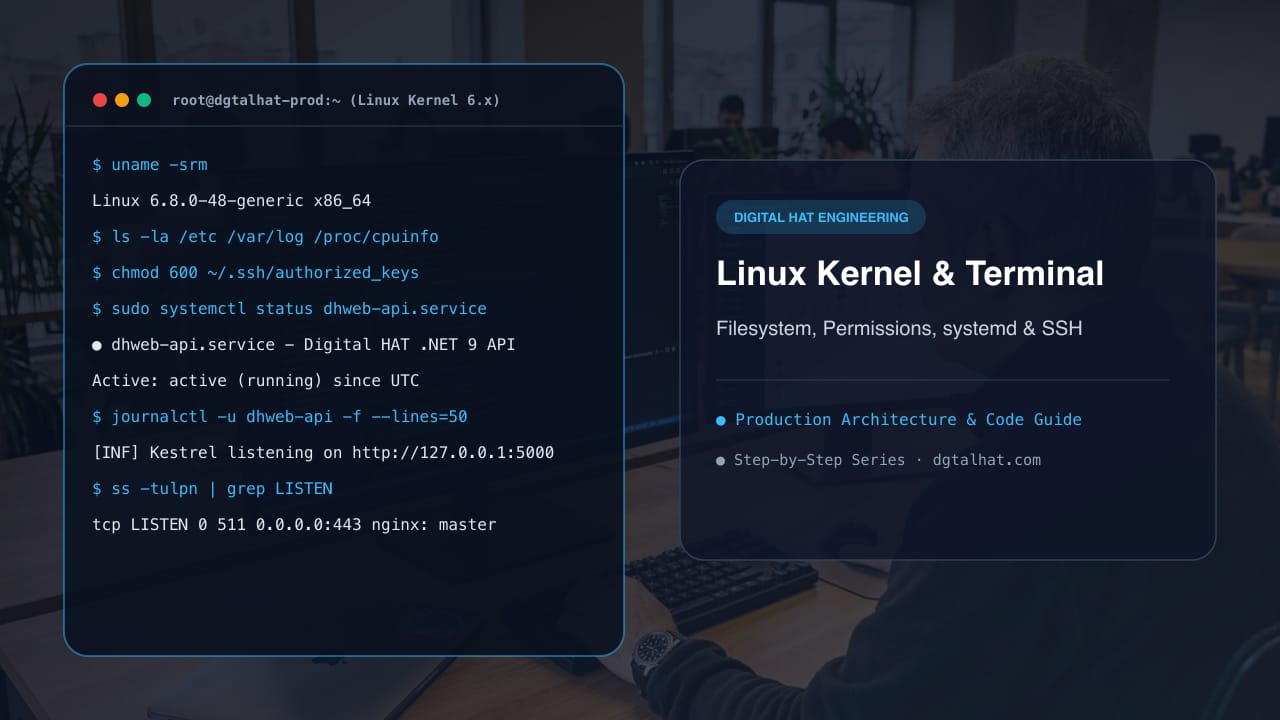
Hello everyone! Once you finish building your C# Web API, Next.js frontend, or PostgreSQL database on your development laptop, where does it actually run in production? Across every major cloud provider (AWS, Azure, Google Cloud, Hetzner, DigitalOcean) and enterprise data center worldwide, over 90% of production servers run on Linux. Furthermore, virtually every Docker container, Kubernetes worker node, and industrial IoT Edge Gateway executes on top of the Linux kernel.
Many developers feel intimidated the first time they open a black SSH terminal window because there is no mouse pointer, no desktop icons, and no C:\Program Files folder. Yet once you understand the architecture of the Linux kernel and its single-rooted filesystem tree, you will realize that the command-line terminal is ten times faster, more transparent, and more scriptable than any graphical user interface. In this complete engineering guide, I will walk you through the Linux kernel vs. user space architecture, the entire root (/) directory tree, and 25 indispensable production terminal commands with real server outputs.
What You Will Master Step by Step in This Linux Guide:
1. Linux Architecture: How Hardware, Kernel Space, System Calls, User Space, and the Shell (Bash/Zsh) interact.
2. Choosing an Enterprise Distribution: Ubuntu Server LTS vs. Debian Stable vs. RHEL / Rocky Linux vs. Alpine Linux.
3. The Complete Root (/) Directory Tree of a Production Linux Server — where configurations, logs, databases, and binaries live.
4. Decoding the Shell Prompt & Standard Streams:stdin (0),stdout (1),stderr (2), Piping (|), and Redirection (>,2>&1).
5. 25 Essential Terminal Commands Across 5 Categories: Navigation, File Operations, Live Log Forensics (grep,tail -f,awk), Resource Monitoring (htop,df -h,free -m), and Network Port Inspection (ss -tulpn,curl).
6. Production Walkthrough: Writing an automatedserver-health-audit.shdiagnostic Bash script.
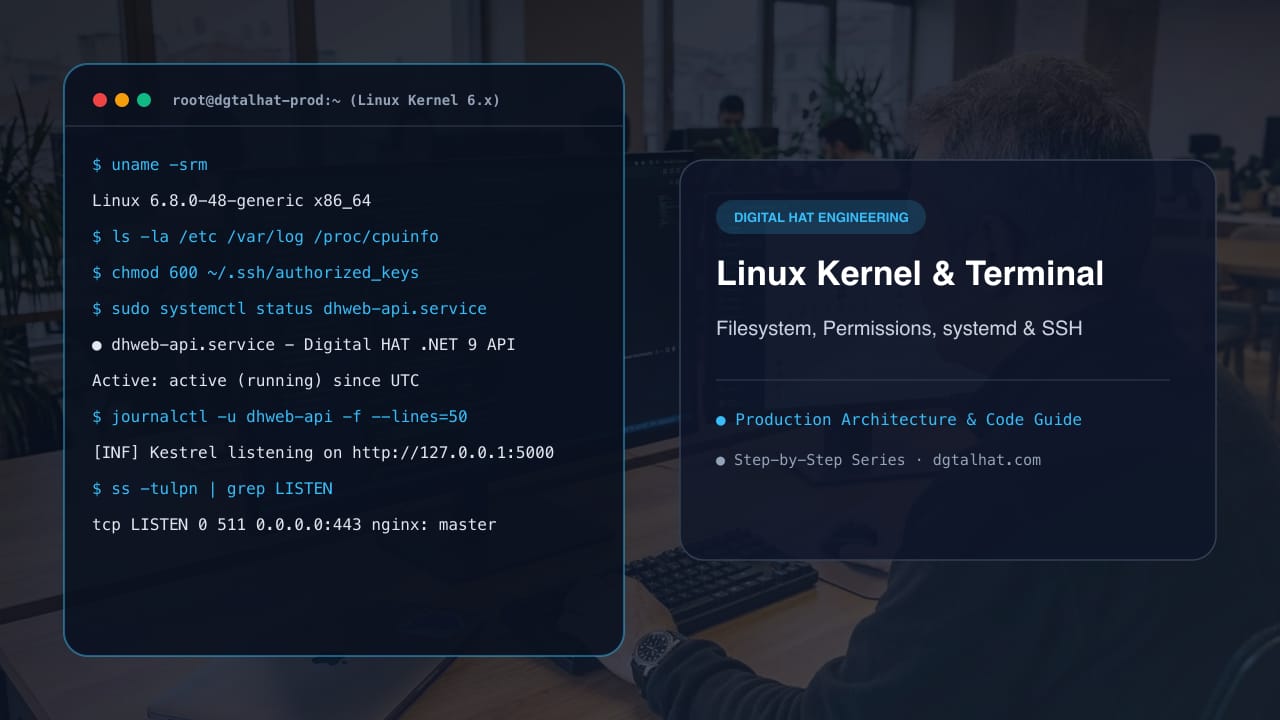
1. Linux Architecture: Kernel Space, User Space, and Distributions
Strictly speaking, Linux is the name of the operating system Kernel originally created by Linus Torvalds in 1991. The kernel sits directly on top of physical hardware—arbitrating access to CPU cores, RAM pages, NVMe disk blocks, and network interface cards (NICs) on behalf of your user-space applications (.NET Kestrel, PostgreSQL, Nginx):
+-----------------------------------------------------------------------------------+
|                        USER SPACE (APPLICATION PROCESSES)                         |
|  +-------------------+   +-------------------+   +-----------------------------+  |
|  | .NET 9 Web API    |   | PostgreSQL 17 DB  |   | Nginx Reverse Proxy / Bash  |  |
|  +---------+---------+   +---------+---------+   +--------------+--------------+  |
+------------|-----------------------|----------------------------|-----------------+
             |                       |                            |
             v                       v                            v
   [ System Calls (ABI Boundary: open, read, write, fork, mmap, socket, epoll) ]
             |                       |                            |
+------------|-----------------------|----------------------------|-----------------+
|            v                       v                            v                 |
|                       KERNEL SPACE (THE LINUX KERNEL)                             |
|  +-------------------+   +-------------------+   +-----------------------------+  |
|  | Process Scheduler |   | Virtual Memory &  |   | VFS (ext4/XFS) & TCP/IP     |  |
|  | (CFS / eBPF)      |   | Page Cache        |   | Network Stack (Netfilter)   |  |
|  +-------------------+   +-------------------+   +-----------------------------+  |
+-----------------------------------------------------------------------------------+
             |                       |                            |
             v                       v                            v
      [ Physical CPUs ]       [ Physical RAM ]         [ NVMe Disks & NICs ]
When you combine the Linux kernel with a system initialization manager (systemd), core GNU utilities, a C standard library (glibc or musl), and a package manager (apt, dnf, apk), you get a Linux Distribution (Distro):
| Distribution | Package Manager | Core Engineering Characteristics | Primary Enterprise Use Case |
|---|---|---|---|
| Ubuntu Server LTS | apt (.deb) |
5-year Long-Term Support lifecycle, massive ecosystem, first-class cloud & hardware driver support. | Cloud VMs (AWS/Hetzner/Azure), .NET & Node.js production hosts, AI/GPU clusters. |
| Debian Stable | apt (.deb) |
The upstream foundation of Ubuntu. Prioritizes battle-tested stability and minimal background bloat. | High-uptime database servers, edge routers, firewalls, and official Docker base images. |
| RHEL / Rocky Linux | dnf / yum (.rpm) |
Mandatory SELinux security profiles out of the box and 10-year enterprise support lifecycles. | Banking, telecommunications, government data centers, and on-premise enterprise ERPs. |
| Alpine Linux | apk |
Weighs only 5 MB! Built on lightweight musl libc and BusyBox with a tiny attack surface. |
Hardened, minimal production Docker containers (mcr.microsoft.com/dotnet/aspnet:9.0-alpine). |
2. The Linux Filesystem Tree: Complete Map of the Root Directory (/)
Unlike Windows, where every storage drive starts with a separate letter (C:\, D:\), Linux follows the Filesystem Hierarchy Standard (FHS). Everything branches downward from a single top-level directory called / (Root). Even if you attach three separate NVMe disks, you mount them onto folders inside this unified tree (such as /var/lib/postgresql or /mnt/backups). Here is the complete X-ray of a production Linux server:
/ (ROOT DIRECTORY: The single starting point of the entire Linux filesystem)
├── bin/  (-> /usr/bin)       # Essential user binaries: ls, cp, mv, cat, grep, bash, curl
├── sbin/ (-> /usr/sbin)      # System administrator (root) binaries: iptables, ufw, reboot, fdisk, ss
├── etc/                      # SYSTEM & SERVICE CONFIGURATIONS (Plain-text config files!)
│   ├── hostname              # Server network hostname (e.g., dgtalhat-prod-01)
│   ├── hosts                 # Local IP-to-hostname mappings (127.0.0.1 localhost)
│   ├── fstab                 # Disk partition mount table loaded at boot time
│   ├── ssh/
│   │   └── sshd_config       # SSH daemon port, root login prohibition, and key authentication rules
│   ├── nginx/
│   │   ├── nginx.conf        # Master Nginx reverse-proxy configuration
│   │   ├── sites-available/  # All defined virtual host configuration files
│   │   └── sites-enabled/    # Symlinks to currently active production domains (dgtalhat.com)
│   └── systemd/
│       └── system/           # Custom background daemon unit files (dhweb-api.service)
├── home/                     # STANDARD USER HOME DIRECTORIES
│   └── dhadmin/              # Your personal workspace (Shorthand symbol: '~' tilde!)
│       ├── .bashrc           # Shell initialization script, aliases, and environment variables
│       ├── .ssh/             # Public SSH keys authorized to log in (authorized_keys - chmod 600)
│       └── dhweb-api/        # Deployed .NET 9 Web API production binaries
├── root/                     # Home directory reserved exclusively for the superuser (root)
├── var/                      # VARIABLE DATA (Files that grow dynamically during runtime)
│   ├── log/                  # All operating system, security, and application LOG files!
│   │   ├── syslog            # Global system activity logs
│   │   ├── auth.log          # Every SSH login success, failure, and sudo elevation attempt
│   │   ├── journal/          # Structured binary logs managed by systemd-journald
│   │   └── nginx/            # Web traffic logs (access.log) and crash diagnostics (error.log)
│   └── lib/
│       ├── postgresql/17/    # Physical database table and WAL files on disk
│       └── docker/           # Docker container layers (overlay2) and volume data
├── tmp/                      # Temporary scratch files (Automatically purged on reboot)
├── opt/                      # Self-contained third-party enterprise software packages
├── usr/                      # Installed user programs and libraries (/usr/bin/dotnet, /usr/local/bin)
├── dev/                      # Hardware device nodes (/dev/sda disk, /dev/ttyUSB0 serial port, /dev/null)
└── proc/                     # VIRTUAL KERNEL FILESYSTEM (Lives in RAM, zero bytes on disk!)
    ├── cpuinfo               # Real-time processor core specifications and clock speeds
    ├── meminfo               # Real-time physical RAM and swap memory breakdown
    ├── loadavg               # 1-minute, 5-minute, and 15-minute run-queue load averages
    └── [PID]/                # Live memory maps and open file descriptors (fd/) for every running process
Architect's Rule of Thumb: In Linux, "Everything is a file." To inspect your CPU model or available RAM, you don't need a proprietary GUI tool—you simply read the virtual files exposed by the kernel in RAM usingcat /proc/cpuinfoorcat /proc/meminfo. To reconfigure a service, you edit its plain-text file under/etc/and reload the daemon.
3. Reading the Shell Prompt, Standard Streams, and Pipes (|)
When you establish an SSH session to a Linux server, you are greeted by a prompt like this:
dhadmin@dgtalhat-prod:~/dhweb-api$dhadmin: The currently authenticated username (also returned bywhoami).@dgtalhat-prod: The server's hostname (defined in/etc/hostname).~/dhweb-api: Your current working directory. The~(Tilde) character is always shorthand for your home directory (/home/dhadmin).$vs.#: A trailing$indicates a standard unprivileged user session; a trailing#warns you that you are operating with unrestrictedroot(Superuser) privileges.
Every Linux process opens three standard data streams (File Descriptors): stdin (0) (Standard Input), stdout (1) (Standard Output), and stderr (2) (Standard Error). You chain commands together using stream operators:
cmd1 | cmd2(Pipe): Feeds thestdoutof the left command directly into thestdinof the right command without touching the disk.cmd > file.txt: Redirects standard output into a file, overwriting any existing content.cmd >> file.txt: Appends standard output to the end of an existing file.cmd > app.log 2>&1: Redirects both standard output (1) and error output (2) into the same log file.
4. 25 Essential Linux Terminal Commands Every Engineer Must Know (5 Categories)
Category 1: Directory Navigation & Listing
# 1. Print the absolute path of the current working directory:
pwd
# Output: /home/dhadmin/dhweb-api

# 2. List all files including hidden dotfiles (-a), with human-readable sizes (-h) in long format (-l):
ls -lah
# Output:
# drwxr-xr-x 4 dhadmin dhadmin 4.0K Nov 24 14:00 .
# drwxr-xr-x 6 dhadmin dhadmin 4.0K Nov 24 12:00 ..
# -rw------- 1 dhadmin dhadmin 1.2K Nov 24 14:00 .env.production
# -rw-r--r-- 1 dhadmin dhadmin 2.4K Nov 24 14:00 appsettings.Production.json
# -rwxr-xr-x 1 dhadmin dhadmin  74M Nov 24 14:00 DHWebBackend.Api

# 3. Change directories rapidly:
cd /etc/nginx          # Jump directly to /etc/nginx
cd ..                  # Move up one parent level
cd ~                   # Return to your home folder (/home/dhadmin) from anywhere
cd -                   # Toggle back to your previous working directory (huge time-saver!)
Category 2: Creating, Copying, Moving, Archiving, and Deleting Files
# 4. Create deeply nested directories in a single command (-p creates missing parent folders):
mkdir -p /var/www/new-service/logs

# 5. Create an empty file or update an existing file's modification timestamp:
touch /var/www/new-service/.env

# 6. Copy files or entire directory trees (-r for recursive directory copying):
cp appsettings.json appsettings.Backup.json
cp -r /home/dhadmin/dhweb-site /home/dhadmin/dhweb-site-backup

# 7. Move or RENAME files (in Linux, renaming a file is done with 'mv'):
mv old-name.txt new-name.txt
mv dhweb-api.tar.gz /tmp/

# 8. Compress a folder into a .tar.gz archive (-c create, -z gzip, -v verbose, -f file) and extract (-x):
tar -czvf dhweb-backup-2026.tar.gz /home/dhadmin/dhweb-api
tar -xzvf dhweb-backup-2026.tar.gz -C /tmp/restore-test/

# 9. Delete files and directories (WARNING: Linux CLI has no Recycle Bin—deletion is instant and permanent!):
rm temp-file.txt
rm -rf /tmp/old-build-artifacts   # -rf recursively force-deletes the directory and everything inside!
Category 3: File Inspection, Searching, and Live Log Forensics
When an error strikes in production, these six commands let you pinpoint the root cause in under 30 seconds:
# 10. Print an entire short configuration file to the terminal (-n adds line numbers):
cat -n /etc/hostname

# 11. Inspect the first 20 lines (head) or the last 50 lines (tail) of a massive log file:
head -n 20 /var/log/nginx/access.log
tail -n 50 /var/log/nginx/error.log

# 12. LIVE LOG STREAMING (-f: follow): Watch new log lines stream onto your screen in real time! (Ctrl + C to exit)
tail -f /var/log/nginx/access.log

# 13. GREP: Search recursively (-r) across thousands of files with line numbers (-n), case-insensitive (-i):
grep -rni "NullReferenceException" /var/log/

# 14. FIND: Locate all .log files under /var/log larger than 100 Megabytes:
find /var/log -type f -name "*.log" -size +100M

# 15. Advanced log pipeline using AWK, SORT, and UNIQ:
# Extract the Top 10 client IP addresses generating the most requests against Nginx:
awk '{print $1}' /var/log/nginx/access.log | sort | uniq -c | sort -nr | head -n 10
Category 4: Monitoring System Resources (CPU, RAM, Disk, Processes)
# 16. Check mounted filesystem disk usage in gigabytes/megabytes (-h: human-readable):
df -h
# Output:
# Filesystem      Size  Used Avail Use% Mounted on
# /dev/sda1        80G   24G   52G  32% /

# 17. Calculate how much disk space each subfolder in the current directory consumes, sorted largest first:
du -sh * | sort -hr

# 18. Inspect physical RAM and Swap utilization in Megabytes (-m):
free -m
# Output:
#                total        used        free      shared  buff/cache   available
# Mem:            7950        2140        1820          45        3990        5510

# 19. Interactive real-time process viewer (or list the top 10 memory-consuming processes via ps):
htop   # (or non-interactive: ps aux --sort=-%mem | head -n 11)

# 20. Terminate a stuck process gracefully (SIGTERM - 15) or forcefully (SIGKILL - 9) by PID:
kill -15 4812
kill -9 4812
Category 5: Networking, Open Listening Ports, and Daemon Verification
Whenever you ask, "My backend service started, so why can't clients connect—which process is listening on which port?" run these commands:
# 21. List all active TCP/UDP listening sockets along with the owning process name and PID:
sudo ss -tulpn | grep LISTEN
# Output:
# tcp   LISTEN 0  511  0.0.0.0:443        0.0.0.0:*    users:(("nginx",pid=1120,fd=6))
# tcp   LISTEN 0  511  127.0.0.1:5205     0.0.0.0:*    users:(("DHWebBackend",pid=4812,fd=184))
# tcp   LISTEN 0  511  127.0.0.1:3000     0.0.0.0:*    users:(("node",pid=5104,fd=21))
# tcp   LISTEN 0  244  127.0.0.1:5432     0.0.0.0:*    users:(("postgres",pid=980,fd=5))

# 22. Test your local API endpoint directly from the server shell and inspect HTTP response headers (-I):
curl -I http://127.0.0.1:5205/api/Services

# 23. Display continuous server uptime and 1/5/15-minute CPU run-queue load averages:
uptime

# 24. Check the health status of systemd background services:
sudo systemctl status nginx postgresql

# 25. Inspect the most recent 50 system journal entries without paging:
sudo journalctl -n 50 --no-pager
5. Production Walkthrough: Automated Server Health Audit Script (server-health-audit.sh)
Instead of typing diagnostic commands one by one during an incident, experienced systems engineers bundle them into an executable Bash script that generates an instant health snapshot:
#!/usr/bin/env bash
# File Path: /home/dhadmin/scripts/server-health-audit.sh
set -euo pipefail

echo "=================================================================="
echo " DIGITAL HAT LINUX PRODUCTION HEALTH AUDIT - $(date -u '+%Y-%m-%d %H:%M:%S UTC')"
echo "=================================================================="

echo -e "\n[1] SERVER UPTIME & CPU LOAD AVERAGE:"
uptime

echo -e "\n[2] MEMORY (RAM & SWAP) UTILIZATION (MB):"
free -m

echo -e "\n[3] ROOT FILESYSTEM DISK CAPACITY:"
df -h / | awk 'NR==1 || NR==2 {print $1, $2, $3, $4, $5, $6}'

echo -e "\n[4] LISTENING TCP SOCKETS & OWNING PROCESSES:"
sudo ss -tlnp | grep LISTEN

echo -e "\n[5] CRITICAL SYSTEMD SERVICE STATES (Nginx, PostgreSQL, DHWeb API):"
for svc in nginx postgresql dhweb-api; do
    STATUS=$(systemctl is-active "$svc" 2>/dev/null || echo "inactive")
    printf "  -> %-18s : %s\n" "$svc" "$STATUS"
done

echo -e "\n[6] RECENT HTTP 500 INTERNAL SERVER ERRORS IN NGINX LOGS:"
ERROR_COUNT=$(tail -n 5000 /var/log/nginx/access.log 2>/dev/null | grep -c " 500 " || true)
echo "  -> Detected HTTP 500 responses (last 5,000 requests): ${ERROR_COUNT}"
echo "=================================================================="
6. Up Next: Advanced Linux — Permissions (chmod/chown), systemd Daemons, Nginx & SSH Hardening
You now know how the Linux kernel and root filesystem tree are organized, how to filter live logs, how to inspect open network sockets, and how to automate health checks in Bash. In Part 2 of our Linux Series, we will decode rwxr-xr-x octal file permissions (chmod and chown), write self-healing systemd service units, configure Nginx Reverse Proxy TLS termination, and lock down SSH against brute-force attacks!
Did you find this engineering guide helpful?
Give it a like or share it with your team and network.